
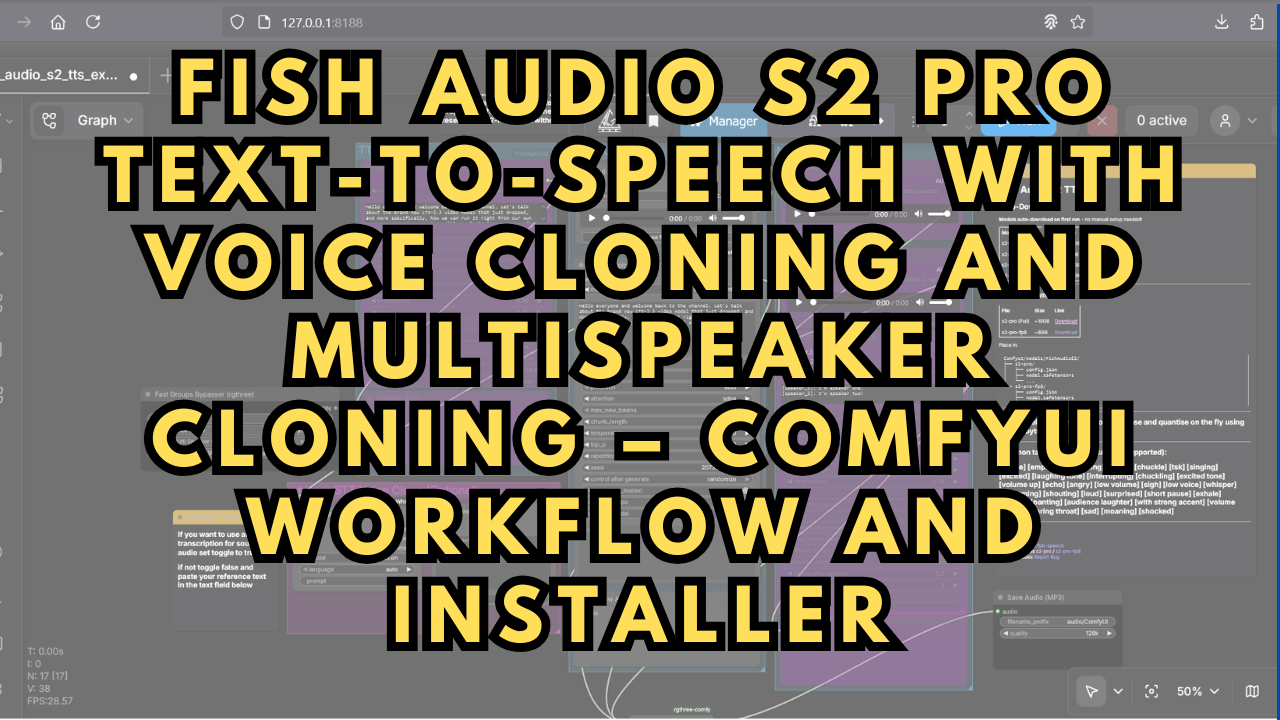
Fish Audio S2 Pro Text-to-Speech with Voice Cloning and Multispeaker Cloning
If you’ve been exploring next-generation AI voice synthesis, the Fish Audio S2 Pro Text-to-Speech (TTS) model is one of the most advanced open models currently available. It delivers studio-quality speech generation, expressive emotion control, and high-fidelity voice cloning — making it perfect for creators, YouTubers, and developers needing natural-sounding dialogue or narration.
Unlike standard text-to-speech solutions, Fish Audio S2 Pro offers scalable performance, multi-speaker cloning, and style conditioning, allowing you to match tones, accents, or emotional delivery with impressive precision. It performs significantly better than earlier Fish Audio models, with reduced latency and clearer prosody reproduction, even on moderate hardware.
This post includes a customized ComfyUI workflow and a one-click Windows installer designed to simplify the entire setup. It’s a refined version of the example workflow from the official ComfyUI Fish Audio S2 repository, with usability improvements for faster deployment:
https://github.com/Saganaki22/ComfyUI-FishAudioS2
Included in the Package
The automated installer sets up everything required to run Fish Audio S2 Pro TTS models through ComfyUI, including:
PyTorch: 2.8.0+cu128
ComfyUI Windows Portable with all dependencies preconfigured
System Requirements
Windows OS
NVIDIA GPU with CUDA support (RTX 30XX or newer recommended)
Minimum VRAM: 8 GB (higher recommended depending on model variant)
Free Disk Space: At least 30 GB
Stable Internet connection for dependencies and repository cloning
FFmpeg: https://www.ffmpeg.org/download.html
SOX (Sound eXchange): https://sourceforge.net/projects/sox/files/sox/
How to Install and Use
Place the installer files in a dedicated folder.
Double-click to begin setup — everything installs automatically.
Launch ComfyUI and load the included Fish Audio S2 Pro workflow.
If some of the custom nodes still show errors, restart ComfyUI and refresh the webpage.
Use the Fast Groups Bypasser nodes to switch between:
Default TTS
Voice Cloning (Single Speaker)
Multispeaker Cloning
Only one mode should be active at a time.
Preset Voices Mode
Choose the model variant based on your available VRAM:
S2-Pro: ~24 GB VRAM – Highest quality, best for powerful GPUs
S2-Pro-FP8: ~20 GB VRAM – Balanced performance and quality
S2-Pro-BNB-INT8: ~18 GB VRAM – Good for mid-range GPUs
S2-Pro-BNB-NF4: ~16 GB VRAM – Most lightweight and fastest
(Exact VRAM usage may vary slightly depending on generation settings and system overhead.)
If this is your first time downloading models, select a version with the “autodownload” tag. After your first run, refresh ComfyUI and switch to the non-autodownload version for faster loading.
To generate speech:
Enter your text in the input box
Add tone instructions like “[calmly]” or “[energetic]”
Use the official emotive tags guide for more control:
https://github.com/Saganaki22/ComfyUI-FishAudioS2?tab=readme-ov-file#emotive-tagsClick Generate
Voice Cloning Mode
Select your model
Upload a 3–10 second reference clip (shorter clips tend to work best)
Click Generate
This supports both single-speaker cloning and multispeaker blending, making it ideal for podcasts, storytelling, dubbing, or character voices.